Published
September's updates keep bringing Amplemarket closer to the tools you already work in: your CRM pipeline, your AI assistant, your inbox, and many more.
Here's what's new:
Trigger workflows from Salesforce opportunities and HubSpot deals
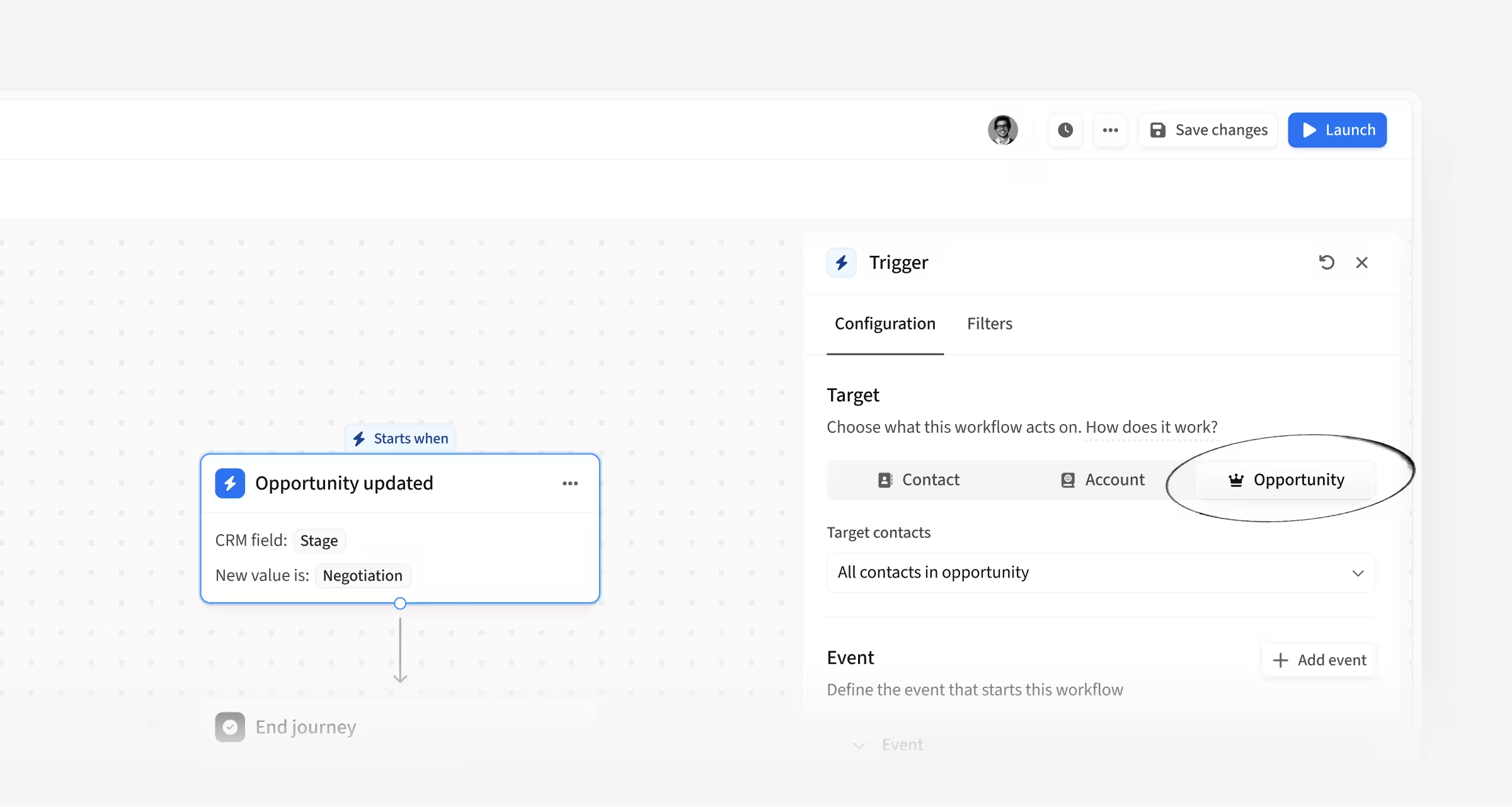
Workflows can now start from a Salesforce opportunity or a HubSpot deal, triggering when one is created or updated.
Filter by fields like stage, pipeline, amount, close date, or owner. Then choose which associated contacts to act on: the primary contact, all contacts, or specific roles or labels.
How this helps you:
- Re-engage contacts from closed-lost deals after a cooling-off period
- Add decision makers to a sequence or create follow-up tasks when a deal reaches a key stage
- Update fields on the deal itself, like marking large deals for executive review
Do more from your AI assistant with the Amplemarket MCP
Manage the full sequence lifecycle
You can now launch, pause, resume, archive, and unarchive sequences through MCP, and rename them or update their tags. Together with the existing tools for creating sequences and managing their stages and leads, you can run a sequence end to end without opening the platform.
Access call logs and transcripts
Your AI assistant can now list calls with their timestamps, durations, dispositions, and outcomes, filtered by rep, direction, phone number, or date range. For any call, it can pull the full transcript, AI summary, and recording link.
Pull competitor data and battlecards
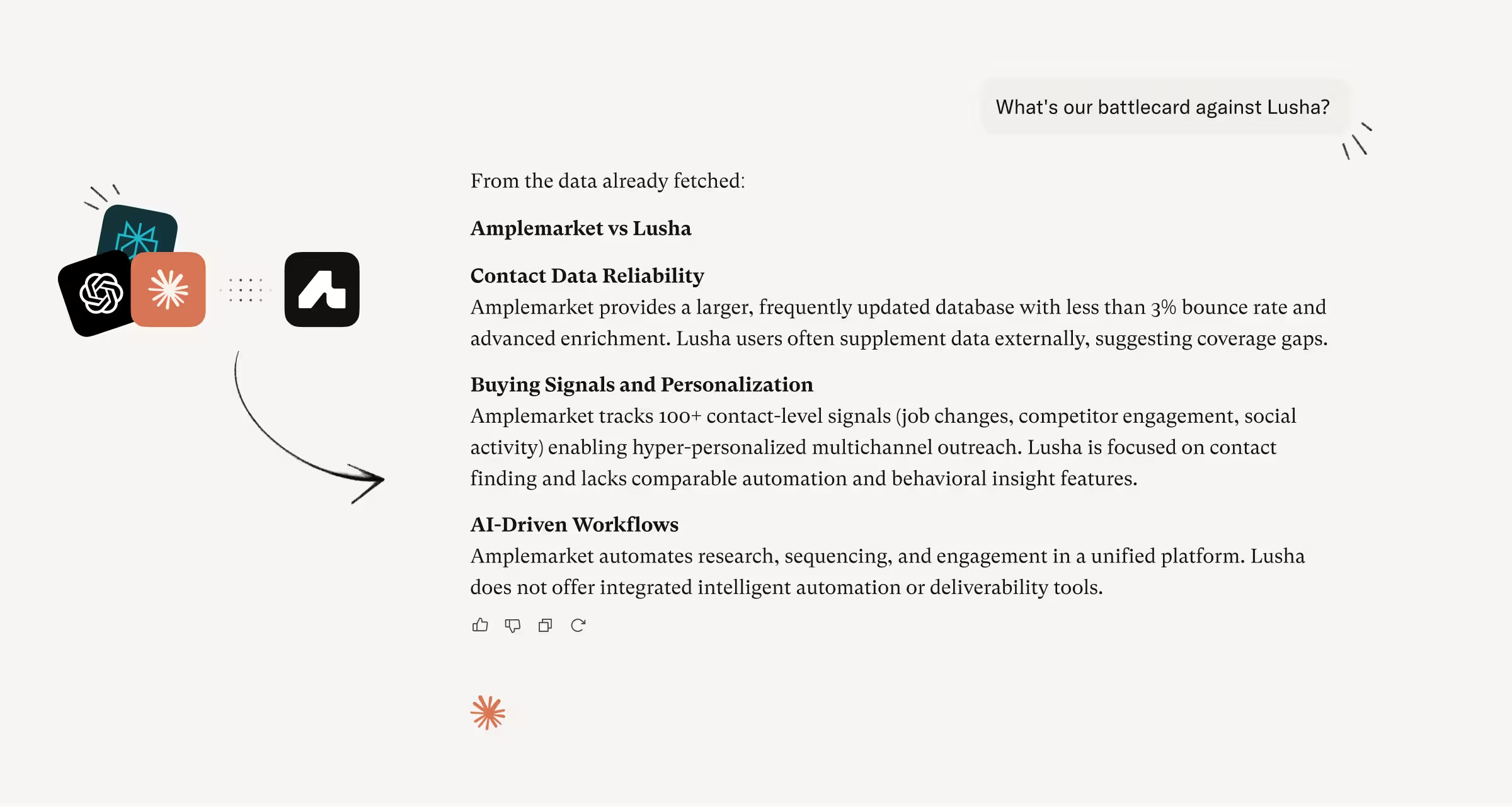
Your tracked competitors and their battlecards are now available through MCP. List them all with their full battlecard content, or search by competitor name.
How this helps you:
- Create, launch, and manage sequences without opening the platform
- Prep follow-ups, coach reps, and report on call activity from transcripts and AI summaries
- Give your AI assistant battlecard context for outreach, with no manual copy-paste
Use your Amplemarket templates directly in Outlook
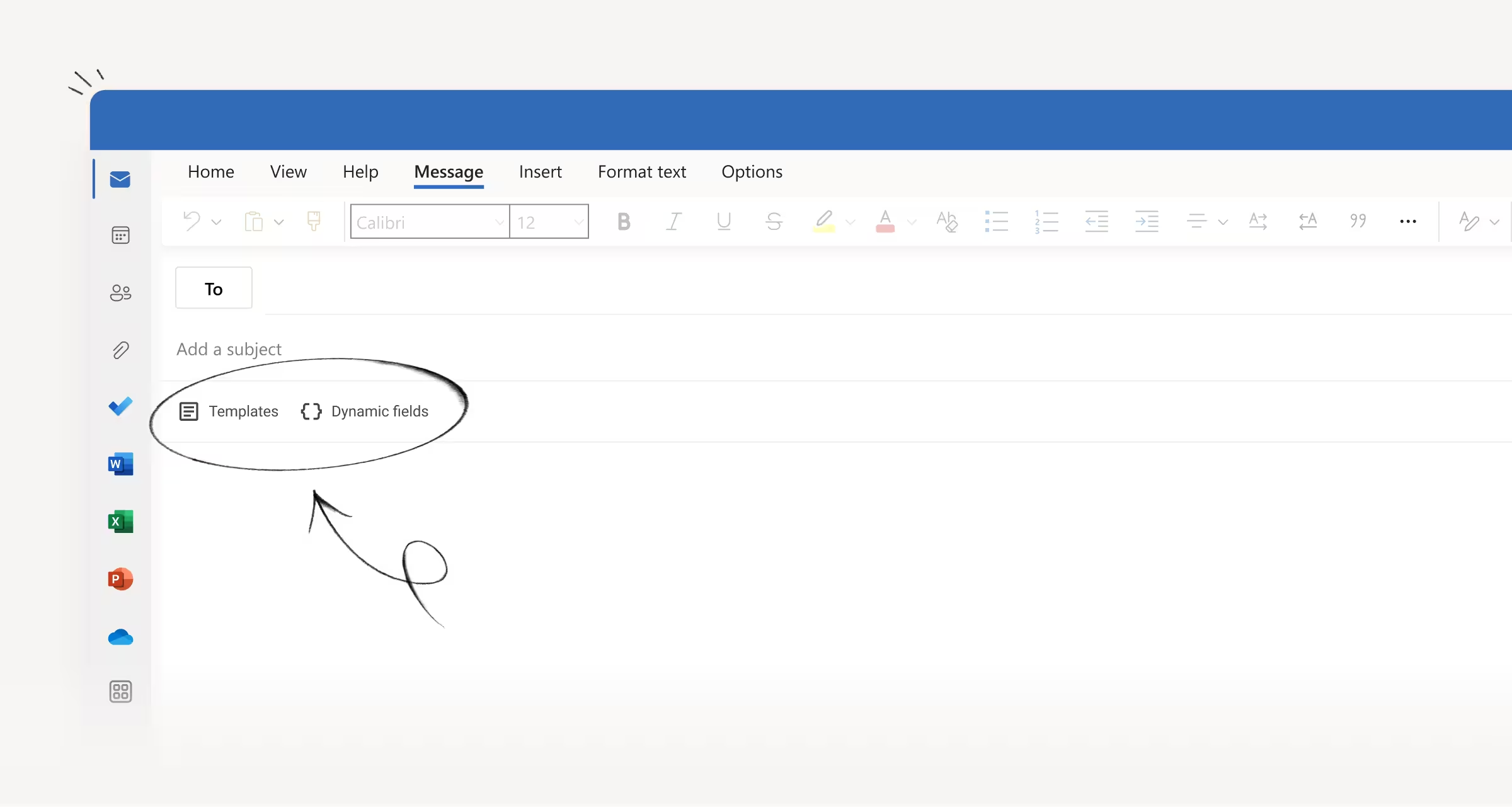
Your full template library and dynamic fields are now available when you compose or reply in Outlook in your browser, through the Amplemarket extension. Insert a template in one click and dynamic fields resolve right in the compose body.
How this helps you:
- Send one-off emails and quick replies without switching to the platform
- Keep your templates in one place instead of relying on other extensions
- Catch unresolved fields before you send, such as when the recipient isn't an Amplemarket contact
See email opens right in your Gmail or Outlook inbox
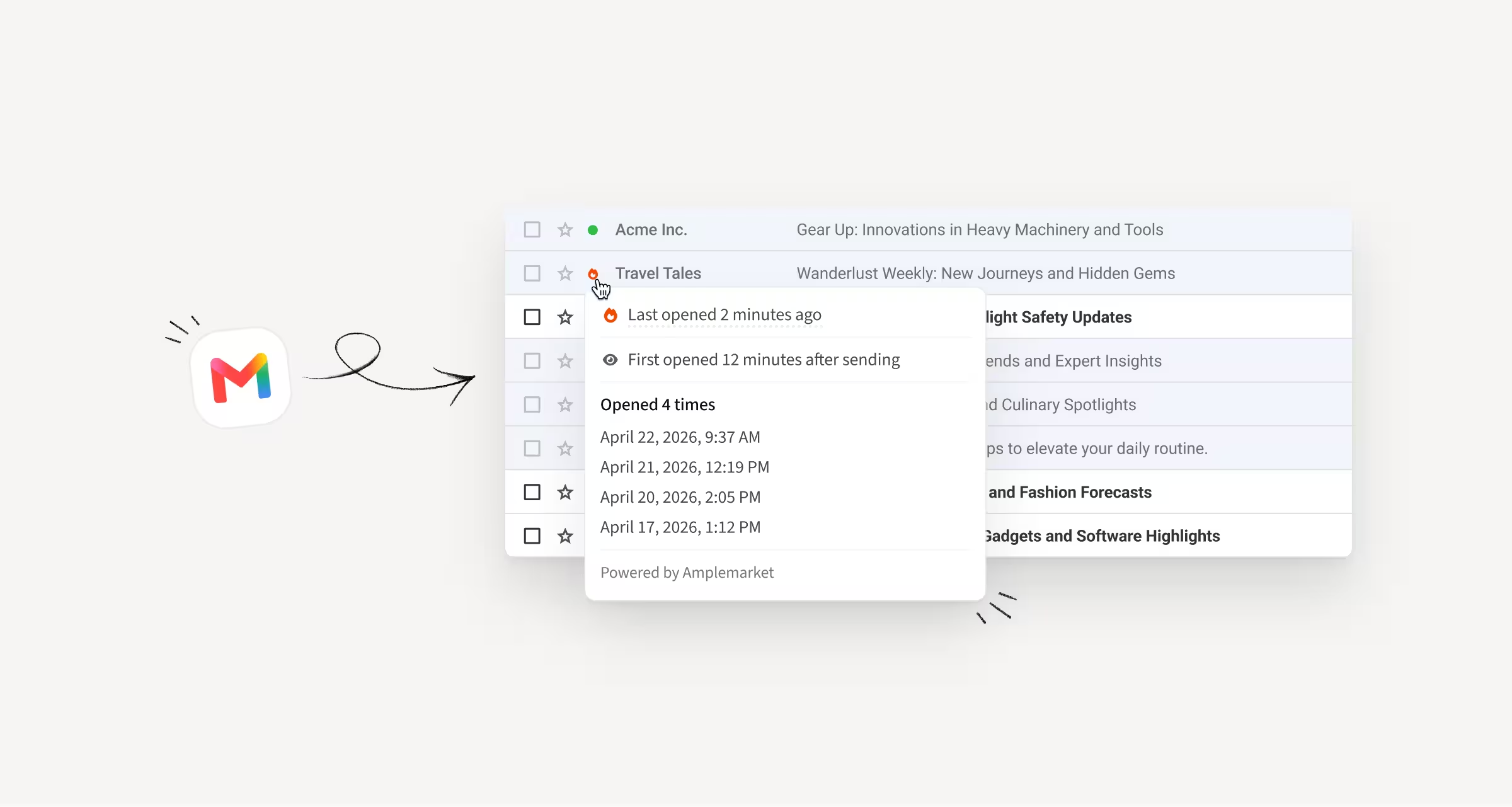
Open tracking indicators now show on each email row in Gmail and in Outlook in your browser, for emails sent via Amplemarket with tracking enabled. An icon tells you if the email was opened in the last 60 minutes, opened multiple times, or opened once.
How this helps you:
- Check opens without switching to the platform
- Follow up while interest is fresh, with a marker for opens in the last 60 minutes
- Hover the indicator to see every open and when it happened
Keep personal numbers out of Parallel Dialer's Smart Rotation
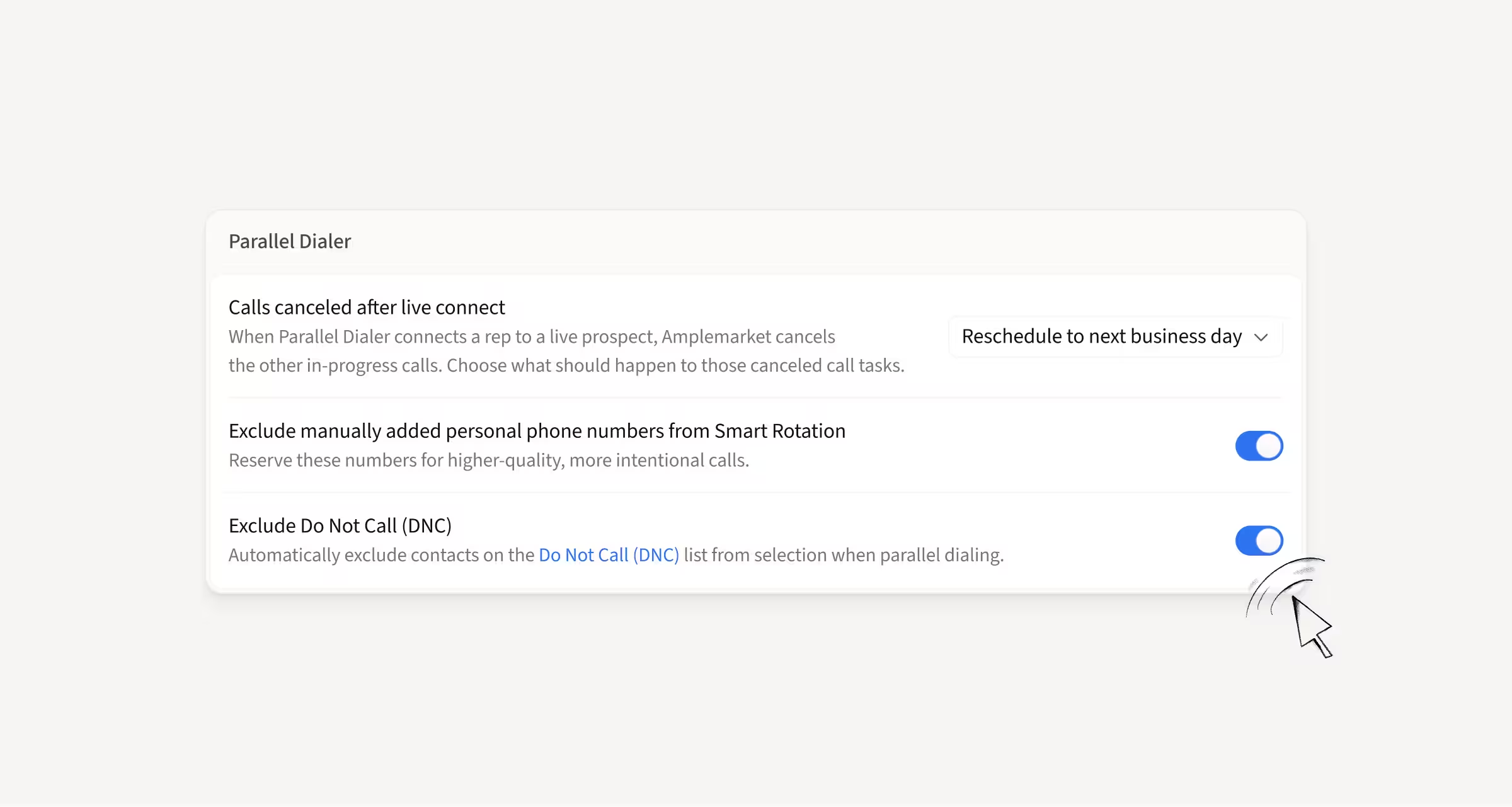
Admins can now exclude manually added personal phone numbers from Smart Rotation in Parallel Dialer, under Settings → Dialer Preferences → Parallel Dialer.
When the setting is on, Smart Rotation prioritizes another eligible number and won't fall back to a personal one, even if no other number is available.
How this helps you:
- Save the numbers reps trust most for more intentional, 1:1 conversations
- Leave the setting off if your team prefers to use them in Parallel Dialer
Set call recording for your whole team in one place
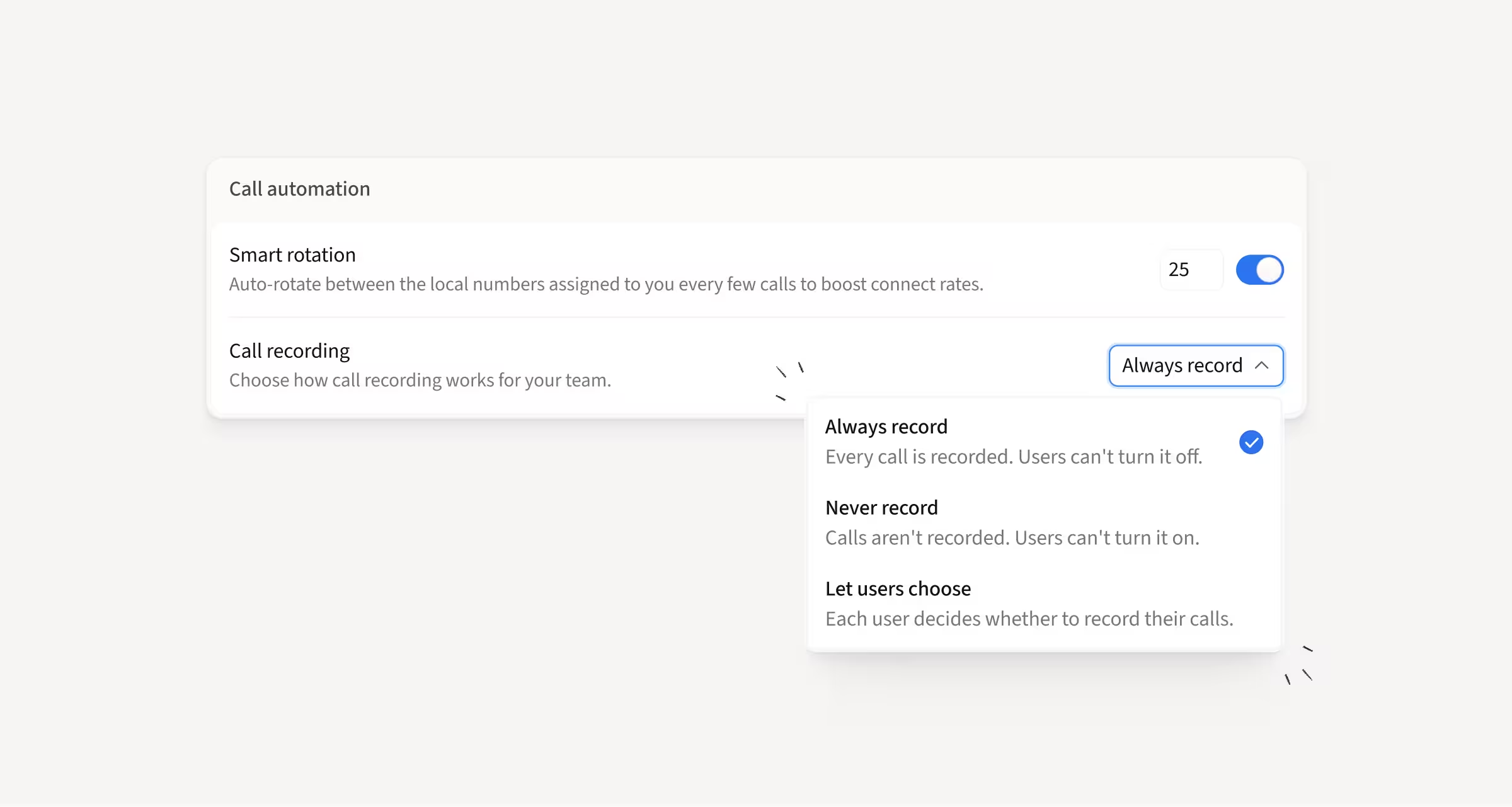
Admins can now choose Always record, Never record, or Let users choose under Dialer → Preferences, and the setting applies to the whole organization.
Let users choose is the default, so nothing changes unless an admin decides otherwise.
How this helps you:
- Turn recording on for everyone instead of one user at a time
- Get recordings, transcripts, AI summaries, and coaching insights consistently across the team
- Turn recording off for everyone, or leave the choice to each rep
Spot hiring trends by department on Account and Company pages
The Jobs tab on Account and Company pages now opens with a chart of jobs posted over time, broken down by department, each with its own growth trend. Hover any bar to see the breakdown for that period, or click a department to filter the listings below.
How this helps you:
- See which departments are growing and which are declining
- Start with the departments most relevant to reps, since the chart is pre-filtered
- Read the full details of every listing right below the chart

Hope these updates make your experience with Amplemarket even better!
Have feedback? Submit it here.
Questions? You can always reach out to support@amplemarket.com